
How to work with Shippp
Try several directions on the canvas, judge them in a live preview and take the winner into code. Shippp keeps the two in sync and sends only what changed.
Bence
Co-founder
A product now exists in several versions at once: an artboard, a prompt, generated code and a spec. Each version drifts from the others, and nobody can point to one place and say: this is the product.
Shippp is built around one file that stays the source of truth. You design on the canvas, your AI client works on the same file over MCP (Model Context Protocol), and your codebase receives the result. This article shows how the three fit together, why they work this way and how one person can move through all of them in a day.
Why it works this way
In the usual way of working, the design is a picture of the product. When it's ready, it's handed off, and someone rebuilds it in code. Every rebuild is a chance for the two to differ, and the difference grows with each round of changes.
AI made this faster and harder to track. Code can be generated in seconds, but each generation is a new version that nobody has compared with the design.
Shippp changes where the truth lives. The design is the file that code and agents both read from. A change starts in one place and reaches the others in a way you can check. That is the reason for every choice in this workflow.
Three places, one design
| Place | Who works there | What it is for |
|---|---|---|
| Canvas | You, as the designer | Exploring, deciding and keeping the source of truth |
| MCP connection | An AI client such as Claude, Cursor or VS Code | Brainstorming and editing the same file, with the access you approve |
| Codebase | You, as the developer | Running the product and building behavior on top of the design |
The canvas has no chat window on purpose. Designing and prompting are different kinds of work, and mixing them makes both harder. You design in Shippp and talk to agents in your AI client. Underneath, both work on the same live file, so neither gets in the way of the other.
Shippp isn't a code editor either. You write code in your own editor, and Shippp takes care of the sync between the design and the code.
The idea behind the workflow
Three ideas hold the workflow together.
The canvas is where you explore. Trying a direction should cost minutes. When you can test an idea quickly, you test more of them, and the final choice is better informed.
You decide in real conditions. A screenshot hides how something feels. Before you choose a direction, you open it as a real page and use it.
Code is where behavior lives. Animations and interactions are easiest to judge by running them. Shippp syncs what it understands and leaves the rest of your code alone.
An example: you design and build
Imagine you're a solo designer who also writes the code. You need a new pricing page. Here is how the work could go.
1. Try several directions on the canvas
You don't commit to the first idea. You sketch a comparison table, a row of cards and a single plan with a toggle. Each one uses your tokens and components, so it already looks like your product.
Each direction gets its own section. Add the mobile and tablet screens to see how it holds up.
How breakpoints work in ShipppThis is efficient because you start each direction from your design system, not from an empty page.
2. Judge each one in the live preview
Click Open live preview in the right panel to open a direction as a real page in a new tab. Resize the window and the page switches breakpoint.

Use it the way a visitor would. Send the Preview link to a colleague if you want a second opinion.
A static screen can't tell you which direction is easier to scan, or how it behaves on a narrow screen. In the preview you find out before you build anything. That saves you from choosing on looks and correcting later in code.
3. Think it through with an AI client
Two directions are left. Connect your AI client over MCP and ask it to brainstorm. It reads your design system and screens, and it can suggest a way to combine the two.
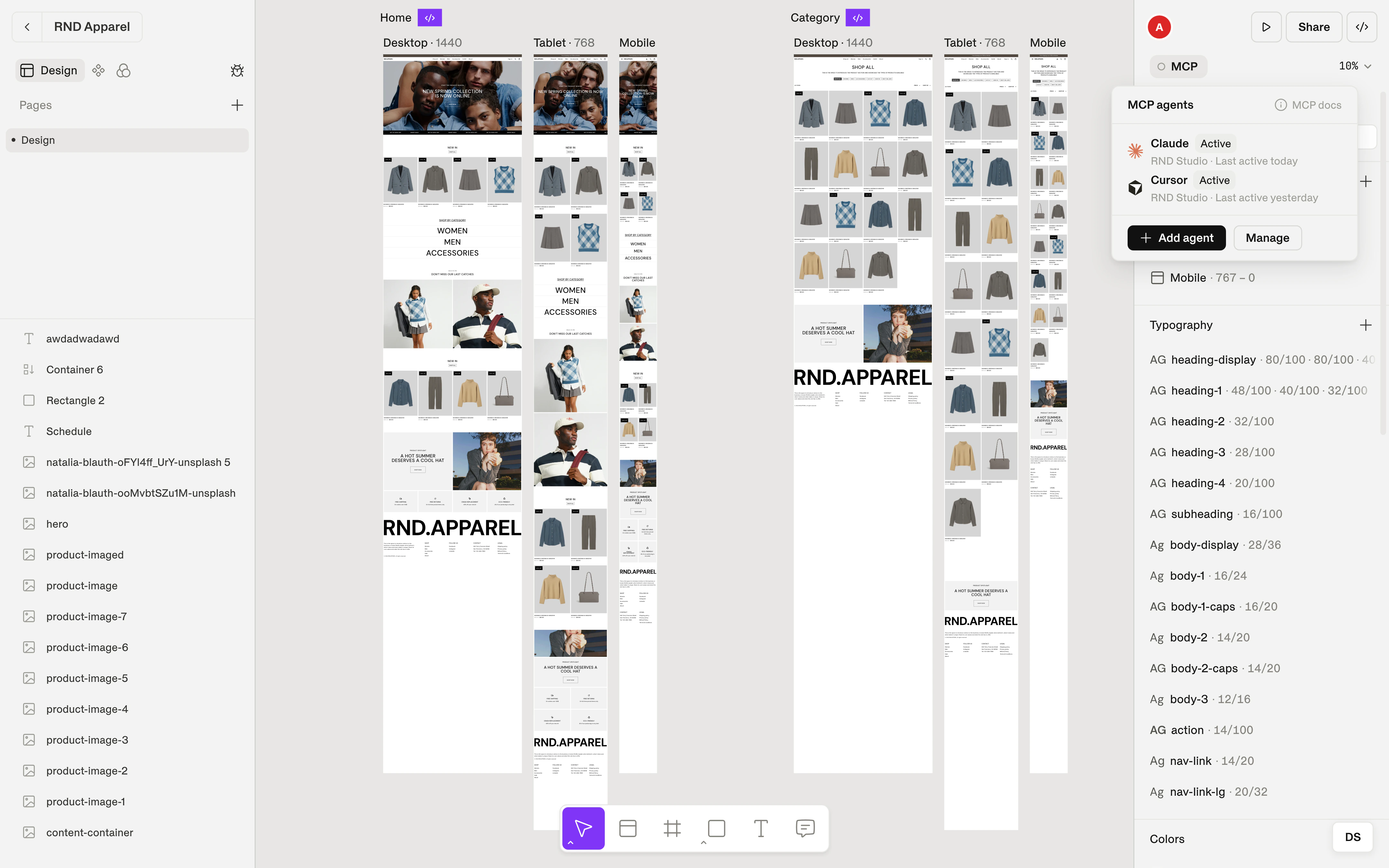
The agent works with the access you approve, Read or Read and write. Its changes appear on the canvas like anyone else's, and nothing is final until you're happy with it. The agent collaborates. The decision stays with you.
The agent works on the real file, not on a description of it. Its suggestions use your components and tokens, so you can review a proposal on the canvas instead of imagining it.
4. Choose a direction
You pick one and clean it up. Then you select the section and click Select for dev.
This marks the point where exploring ends. From here on, everyone, including your AI client, can see which design is the one to build.
5. Bring the design into code
Your AI client gets the code out in one of two ways.
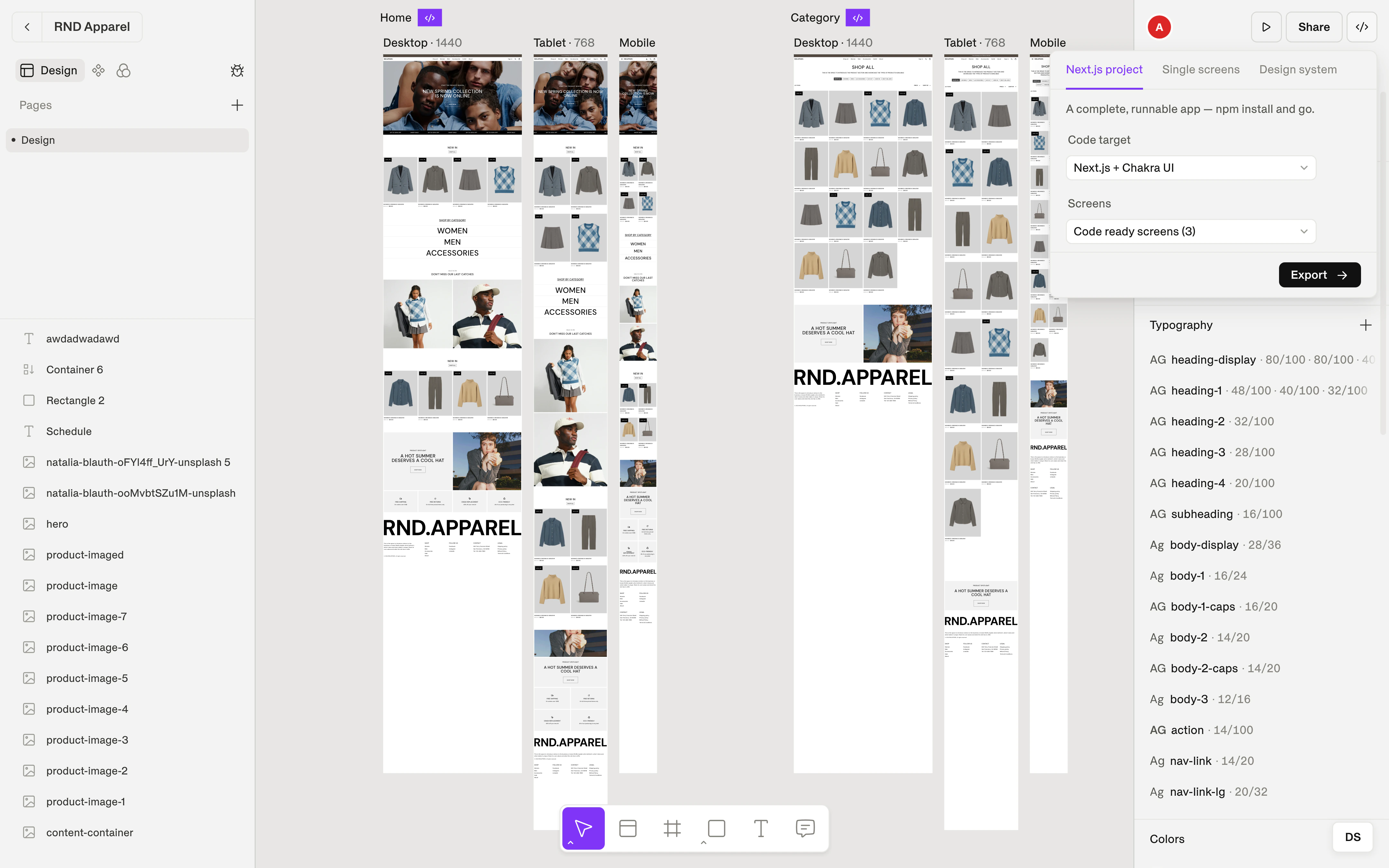
For a new project, the agent exports the code. For an existing repository, it binds the repository to your design once. You approve the plan, and a shippp.target.json file is added to the repository root. From then on, the agent can sync.
Shippp writes only into its own folder, src/shippp by default. A receipt records what it wrote, so the next sync knows what changed. Run your repository's checks, start the dev server and open the page.
The separate folder is what makes the rest of the workflow safe. Shippp knows which files are its own, so it can update them without touching anything you wrote. The receipt lets it tell the difference between what it generated and what you changed.
6. Keep building in code
Now you make the page feel right. You add an entrance animation and a reaction to the billing toggle.
This code is yours. Shippp didn't generate it and doesn't touch it. If you edit a file Shippp generated, Shippp notices and doesn't overwrite your change.
Behavior is easiest to judge when it runs. Building it in code, in your own editor, gives you the real feel, and the design file doesn't have to carry things it can't yet describe.
7. Send a code change back to the canvas
While you work, you give one of the cards a hover state in code. You want it in the design too.
Ask your AI client to write it back. The agent reads what you built and adds it to the design over MCP. On the canvas it appears as a variant of the component, and you review it like any other change.
A hover state means something in design terms: it's a variant of a component. When the agent adds it that way, it becomes part of the design system and every other screen can use it. Turning any piece of code back into design is a different problem, and Shippp doesn't claim to do it.
8. Carry on from either side
Later you change the card padding on the canvas. You sync, and the diff contains that change and nothing else. Your animations and interactions stay as they are.
This is the payoff. The canvas and the code both keep moving, and neither one overwrites the other.
What syncs and what doesn't
| Direction | What moves | How |
|---|---|---|
| Canvas → code | Design changes, such as a new padding value | Deterministic sync of the diff, into the folder Shippp owns |
| Code → canvas | What an agent writes to the design over MCP, such as a hover state that becomes a variant | Through your AI client, with your approval. This isn't a general code import |
| Stays in code | Animations and interactions | Not synced back to Shippp yet |
Shippp syncs what it can describe exactly. A padding value or a variant has one clear meaning in both places, so it can move without guessing. Anything that needs interpretation stays where you wrote it.
Why your code stays clean
Shippp doesn't use AI to write code in the sync. It generates the code from the design in a fixed, repeatable way, compares it with what you have and applies only the difference. The same design always produces the same code.
This matters for three reasons:
- The diff is small, so a review takes minutes and shows exactly what a design change did.
- Nothing is guessed, so the result doesn't vary between runs.
- Your own code is safe, because Shippp writes only into files it owns.
You approve the diff before anything is written. A receipt records every sync, and your repository's history shows every change. What you design is what ships.
How this differs from the usual way
| The usual way | With Shippp |
|---|---|
| The design is a picture, and code is rebuilt from it | The design is the file that code is generated from |
| Every change is redone in code by hand | A design change reaches the code as a small diff |
| Generated code replaces what was there | Shippp writes only into its own folder and protects your edits |
| Choosing between directions means comparing screenshots | Every direction opens as a live preview |
| Prompting happens in the design tool or in a separate copy | The agent works on the same live file from your AI client |
Work in a team
The same workflow fits a team. The designer works on the canvas and marks sections with Select for dev. The developer syncs the code and builds the behavior on top. Both work from the same file, so neither has to reinterpret the other's work.
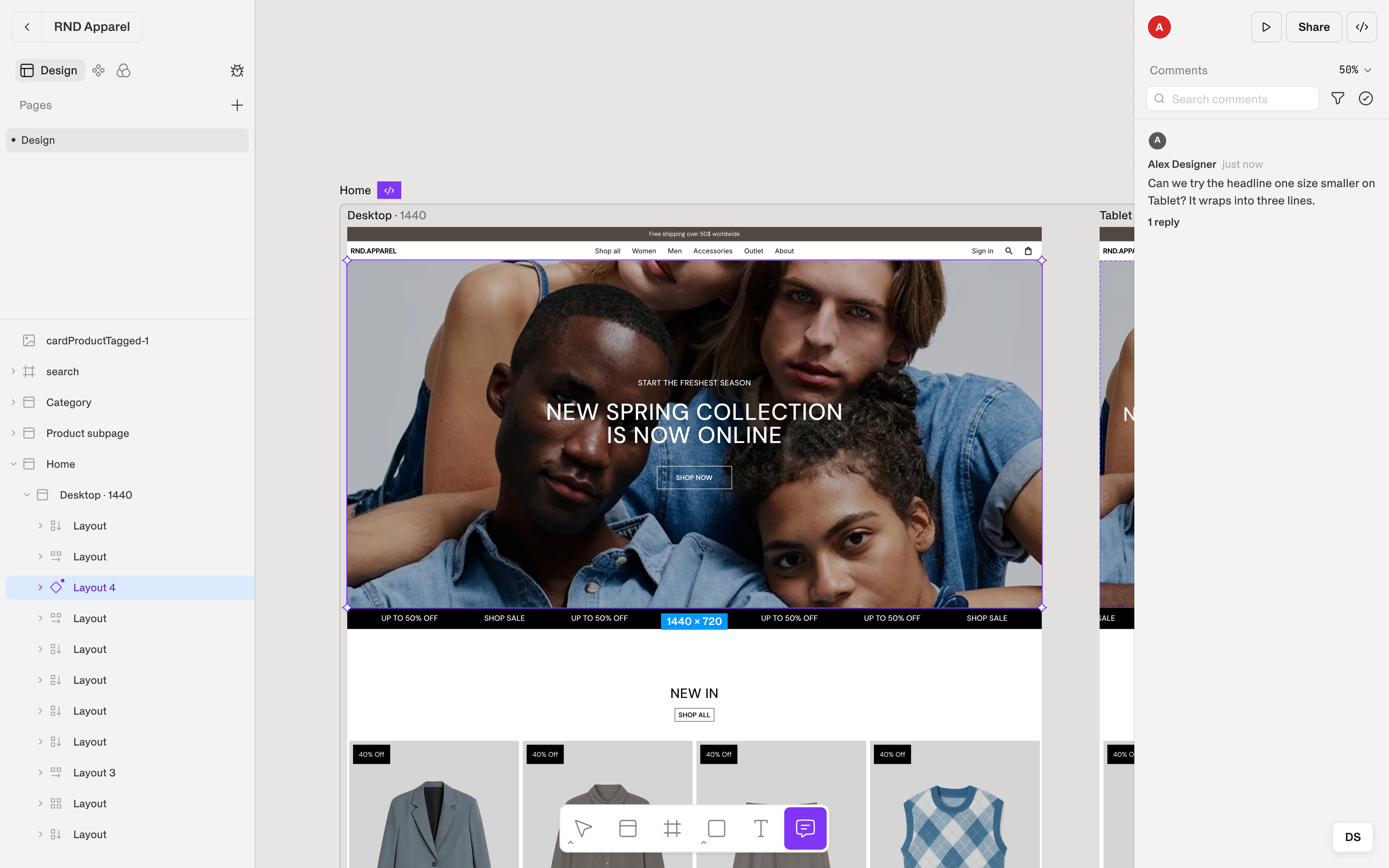
Working alone is the same workflow with one person in both roles.